Logging in to your Conversation Intelligence trial for the first time
Last updated: May 19, 2026
We're excited that you're ready to begin your Conversation Intelligence trial! To help you get started quickly, we've set up a simplified login process that differs from how full customers typically access the platform.
Instead of logging in through your company’s Single Sign-On (SSO) system, trial accounts use a standalone email and password. This avoids the need for IT setup or SSO configuration during your evaluation period, allowing you to jump right in.
Should you decide to use our Conversation Intelligence product beyond your initial trial, our team will work with you to configure SSO for your site.
This article will walk you through everything you need to get started:
Verifying your account
Accepting your trial invitation
Setting or resetting your password
Logging in for the first time
After completing these steps, you will be able to log in simply by navigating to your tenant URL (Ex: https://company-name.replicant.ai) and entering your login credentials.
Step-by-step guide:
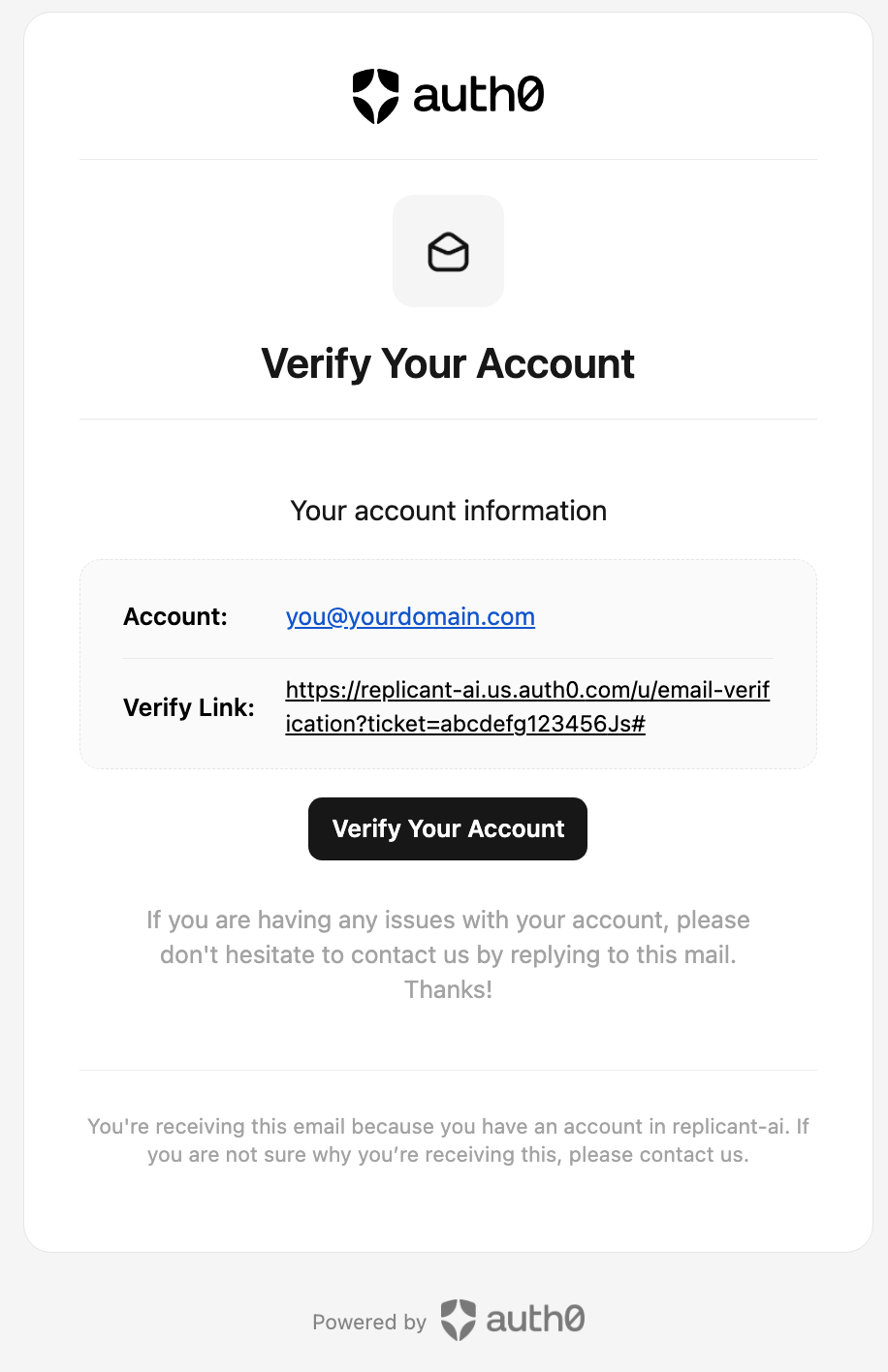
1. Verify your account through auth0
You will receive an email from auth0 with the subject line Verify your email. Click Verify Your Account to start the process.
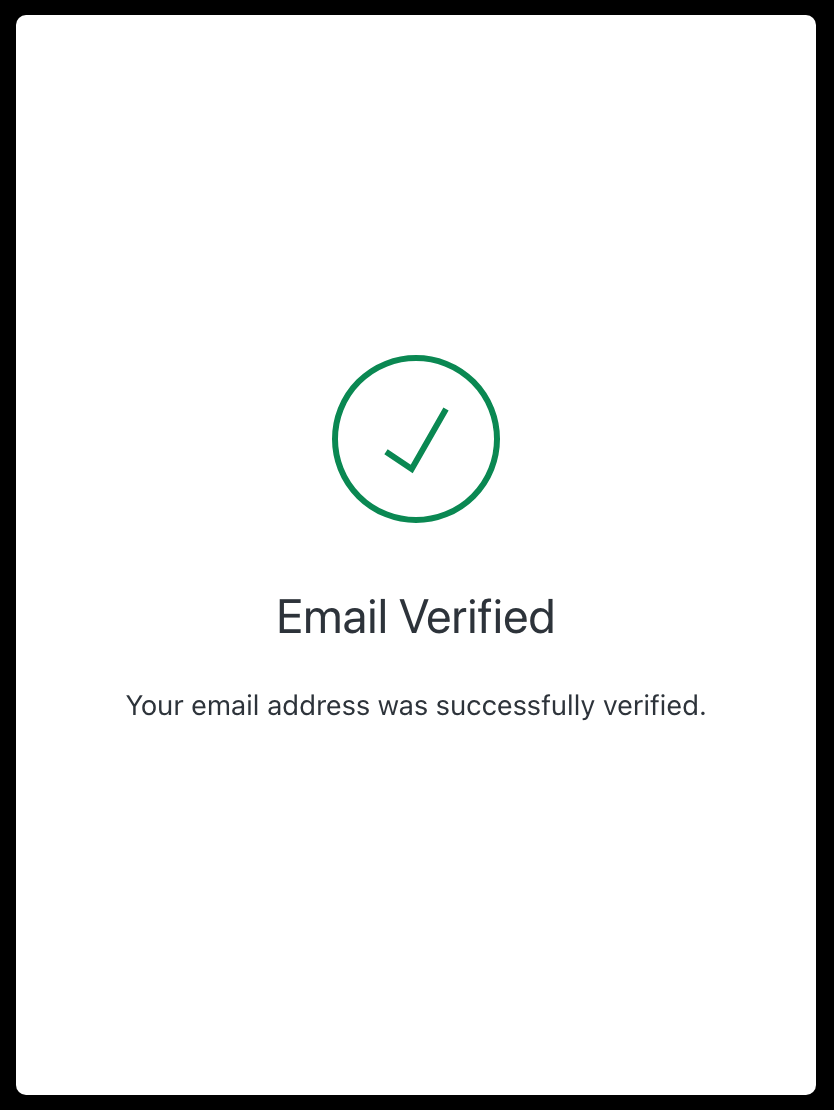
Ensure you are taken to the Email Verified page:
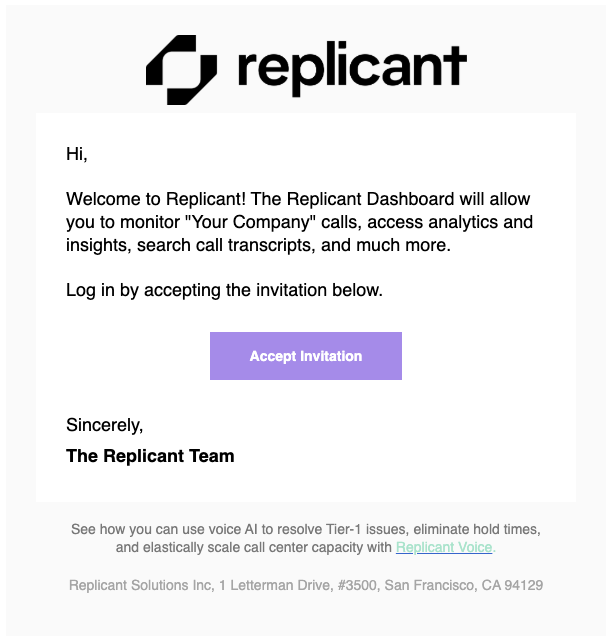
2. Find your invitation email and accept the invitation
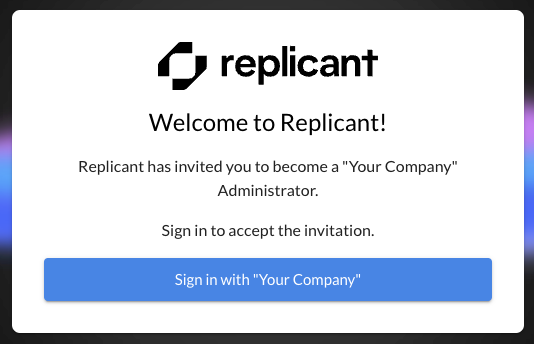
Look for an email from Replicant with your trial invite. Click Accept Invitation to log in to your tenant.
Click Sign in with {Your Company Name}.
3. Reset your password
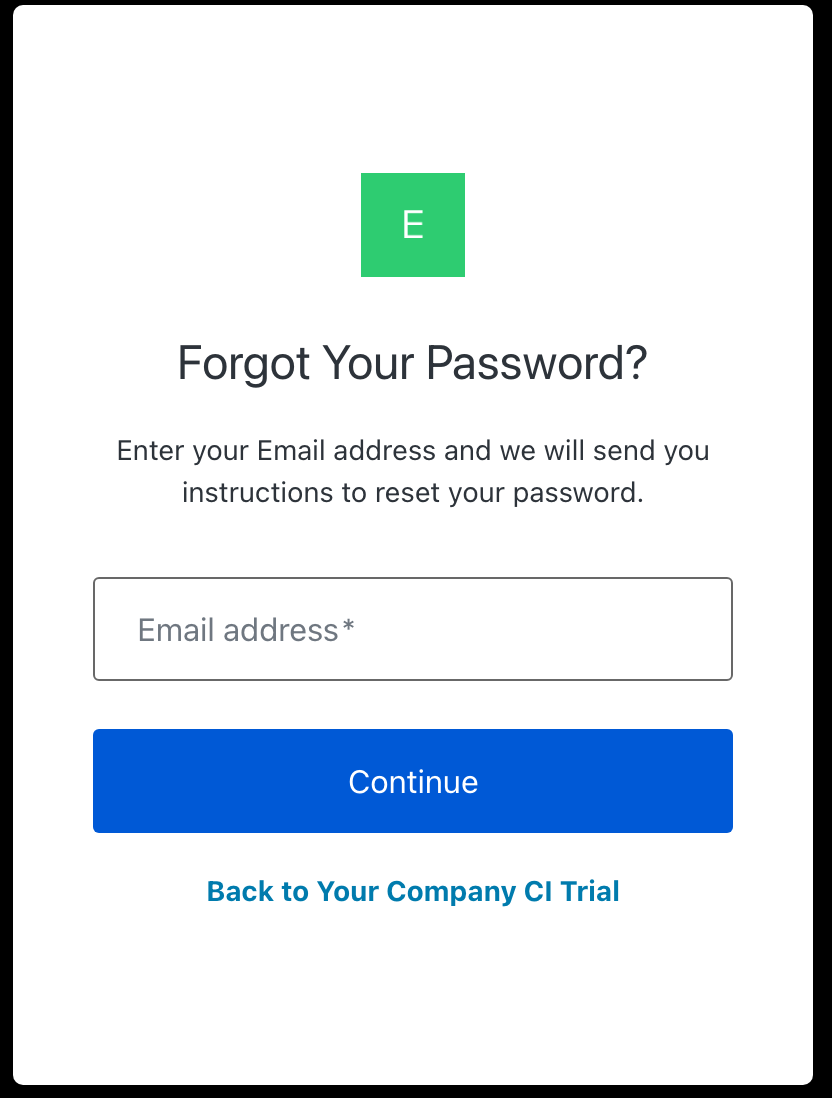
Click Reset password. Enter your email address in the text box and click Continue.
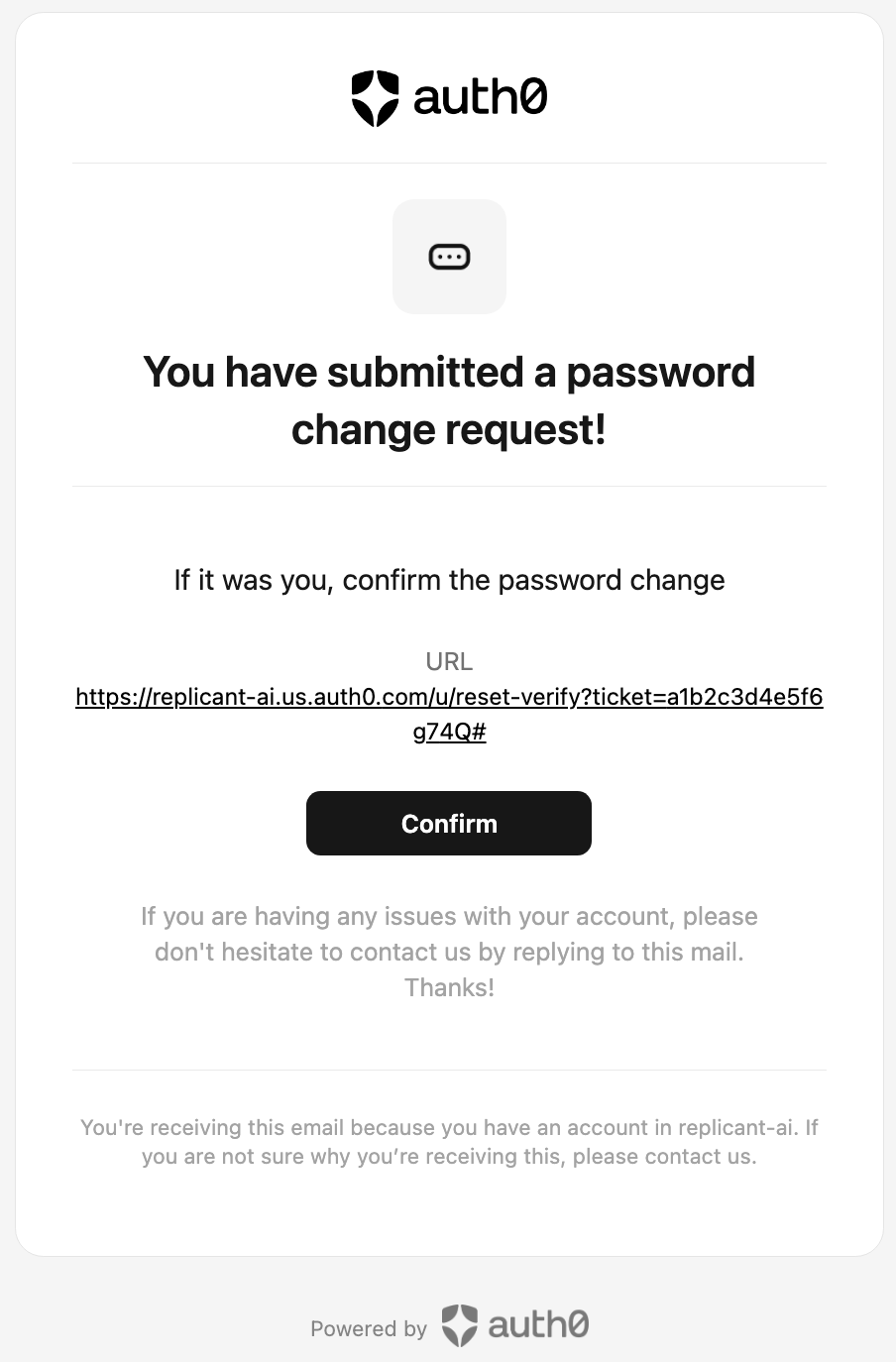
You will receive another email from auth0 prompting you to change your password. Click Confirm.
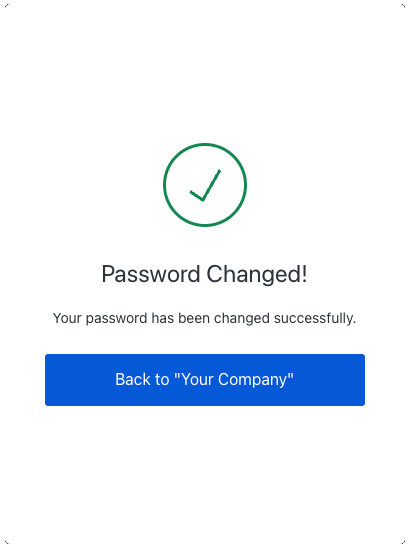
Enter your new password in both text boxes and click Reset Password. On the password changed confirmation page, click Back to {Your Company} to log in to your tenant.
4. Log in to your account
Enter your email and newly created password and click Continue to log in. You may see a Domain Not Found error page at this point.
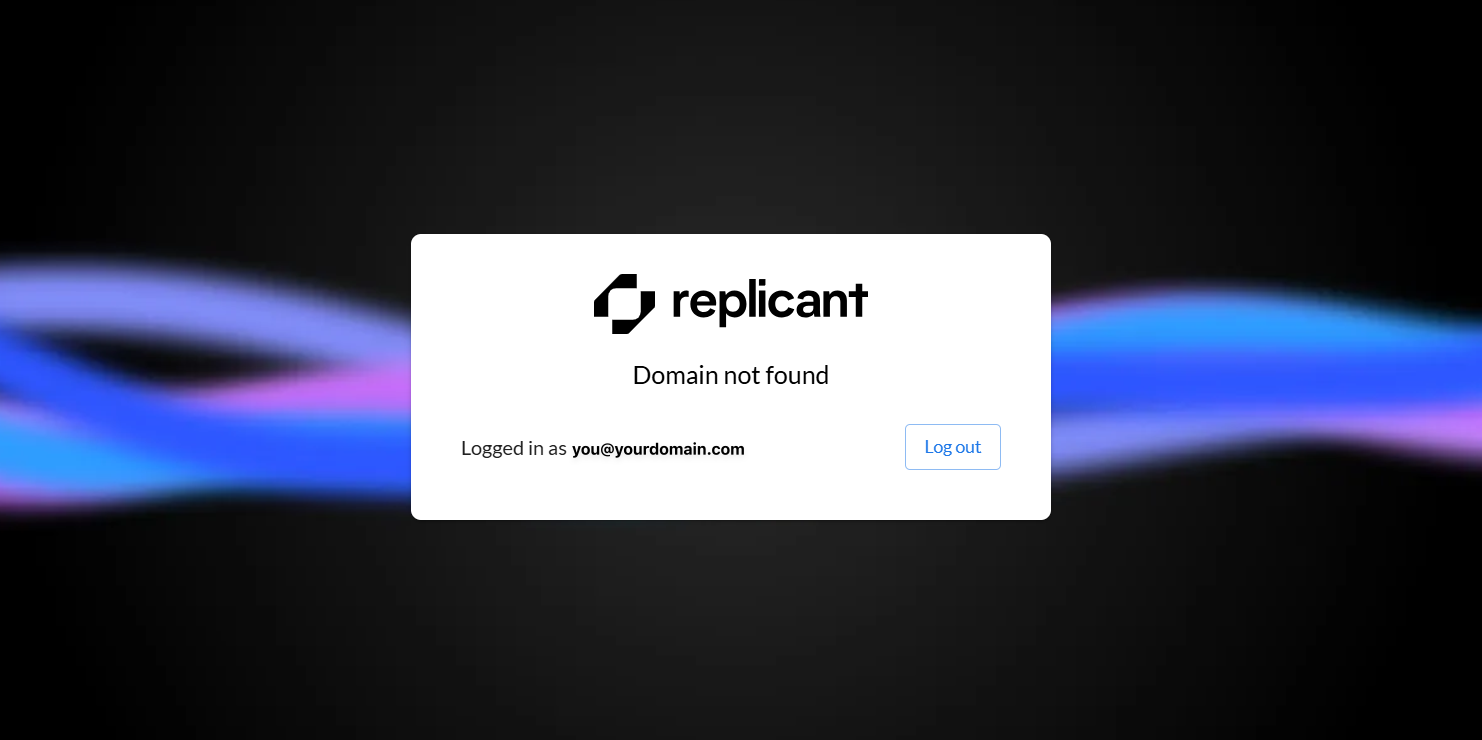
If this happens, go back to the invitation email you received and click Accept Invite again. This will allow you to log in successfully.
5. Access your dashboard
After accepting the invitation, you’ll be taken directly to your trial dashboard. You are now ready to start exploring.
If you run into any issues during these steps, please reach out to your Account Manager or Replicant Support.